1. Export a CSV file from Live Timecode Notes app
Open the project in the app, then select "Export Notes" from the top menu. Select "CSV". Generate and save the file.
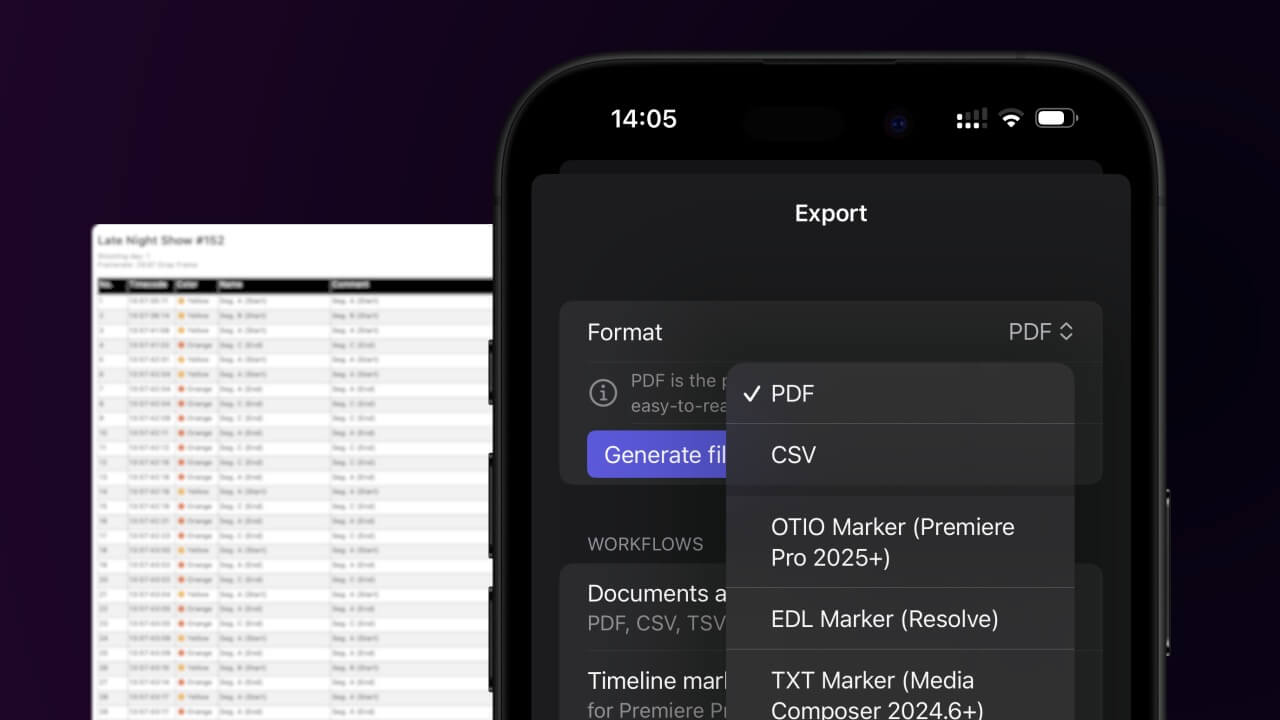
2. Use the "Конвертор на маркери" to convert the CSV file into an ODS file
Open the free Конвертор на маркери, select "CSV" and set "convert" to "ODS". Generate and download the file. Ако имате проблеми с конвертирането на файла, можете да се свържете с безплатната поддръжка.
Ensure that the CSV file contains columns labelled "Timecode In", "Name" and "Comment". Otherwise, it will not work. You can also add columns for 'Colour' and 'Timecode Out'.
🚀 Готово
Това е всичко засега! Ако този урок ви е бил полезен, моля, споделете го, за да ни подкрепите. Ако имате предложения как бихме могли да подобрим работния процес, споделете с нас!