1. Export an Audition marker file from Notetracks Pro
To export markers and comments from Notetracks Pro, click the Download button in your active session and select "NoteTracks.com > Audition Markers (.csv)".
2. Use the "Конвертор на маркери" to convert the Audition marker file into a CSV file
Open the free Конвертор на маркери, select "Audition" and set "convert" to "CSV for Google Sheets". Generate and download the file. Ако имате проблеми с конвертирането на файла, можете да се свържете с безплатната поддръжка.
3. Import the CSV file into Google Sheets
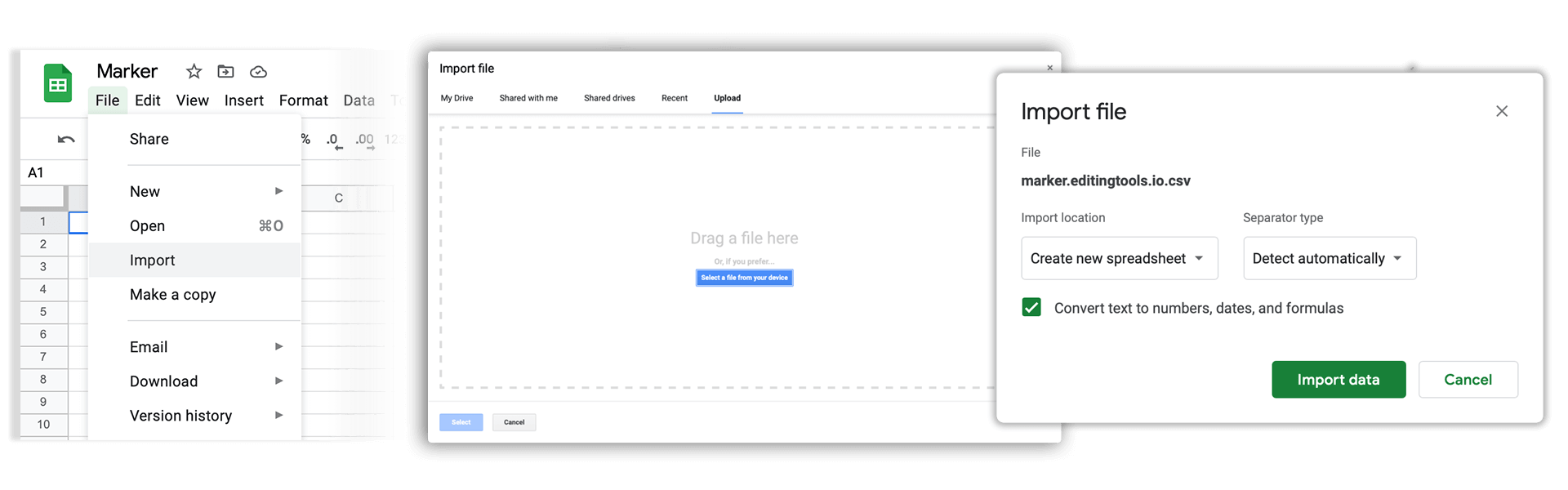
Open Google Sheets and go to "File -> Import". Upload the generated CSV file and press "Import Data" to generate the Sheet with all markers.
🚀 Готово
Това е всичко засега! Ако този урок ви е бил полезен, моля, споделете го, за да ни подкрепите. Ако имате предложения как бихме могли да подобрим работния процес, споделете с нас!