1. Export a CSV marker file from Pix
Open the comments panel on the right side in Pix. Press the three dots and select "Export". Now you can then download the CSV file from Pix.
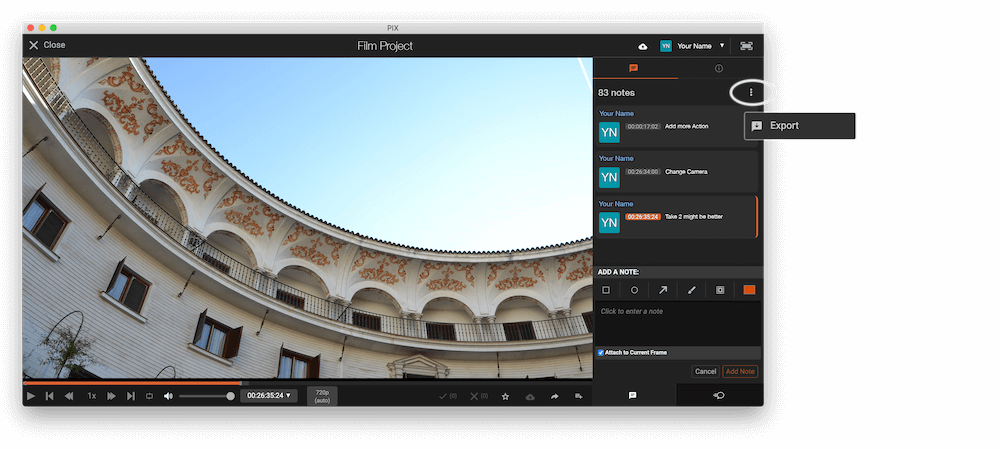
The timecode in Pix starts with 00:00:00:00 for each clip, so you may need to use the offset function on EditingTools.io to sync it with you timeline or move it manually in your NLE (editing software).
2. Use the "Конвертор на маркери" to convert the CSV marker file into an EDL marker file
Open the free Конвертор на маркери, select "Pix Systems > Comments (.csv)" and set "convert" to "DaVinci Resolve > Sequence (.edl)". Generate and download the file. Ако имате проблеми с конвертирането на файла, можете да се свържете с безплатната поддръжка.
3. Import the EDL marker file in DaVinci Resolve
- Create the new sequence or open the sequence in your project.
- Right-click the Sequence in your Media tab. It will open the popup menu.
- Navigate to: "Timelines > Import > Timeline Markers from EDL".
- Select the EDL marker file for Resolve and the markers will load.
If you don't see any markers, make sure they are in the correct timecode range and try zooming out of your timeline. If you cannot find the Timeline Markers, make sure you have selected a sequence in your Media tab. Resolve might not support special characters in marker names and comments.
🚀 Готово
Това е всичко засега! Ако този урок ви е бил полезен, моля, споделете го, за да ни подкрепите. Ако имате предложения как бихме могли да подобрим работния процес, споделете с нас!