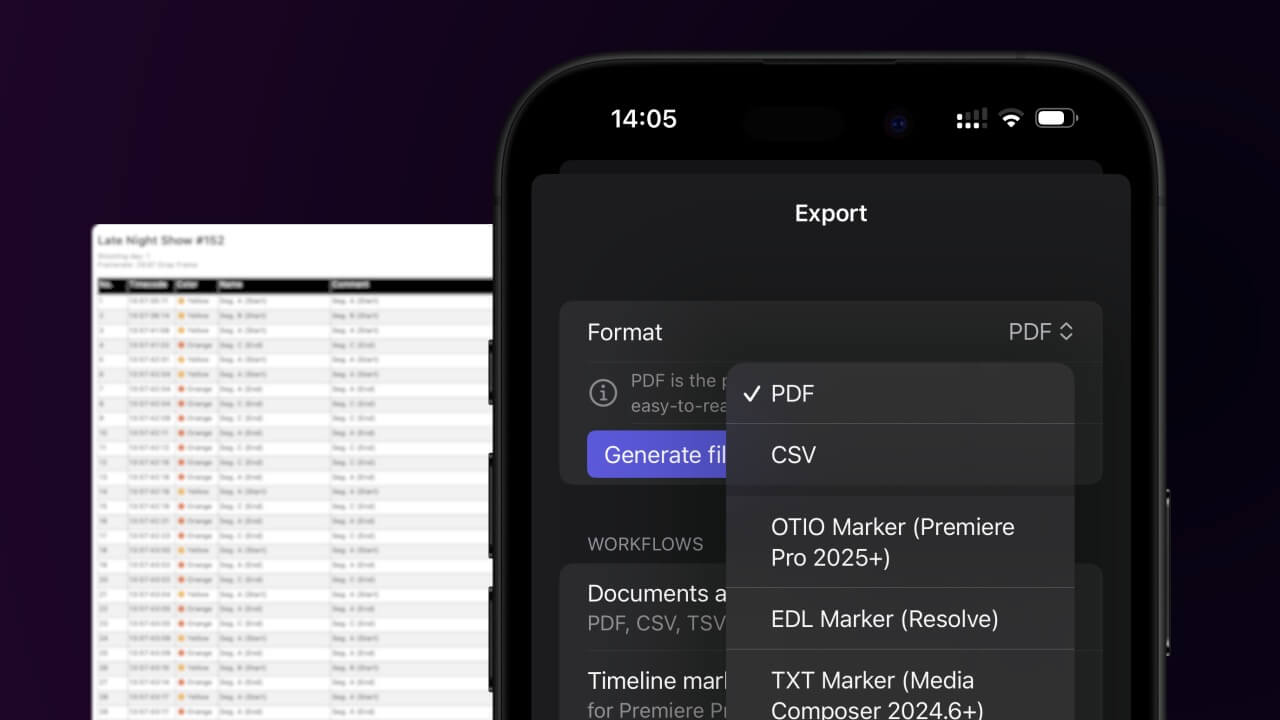
1. Export a CSV file from Live Timecode Notes app
Open the project in the app, then select "Export Notes" from the top menu. Select "CSV". Generate and save the file.
2. Use the "Инструмент за субтитри и конвертор" to convert the CSV file into an Avid Script Sync subtitle file
Open the free Инструмент за субтитри и конвертор, select "CSV" and set "convert" to "Avid Script Sync". Generate and download the file. Ако имате проблеми с конвертирането на файла, можете да се свържете с безплатната поддръжка.
Make sure the CSV contains a column called "Timecode In", "Timecode Out" and "Subtitle". Otherwise it will not work.
🚀 Готово
Това е всичко засега! Ако този урок ви е бил полезен, моля, споделете го, за да ни подкрепите. Ако имате предложения как бихме могли да подобрим работния процес, споделете с нас!